KingPlayer User Guide
Learn about key features and how to use KingPlayer.
Getting Started
Install, open files, interface
Playback
A-B repeat, speed, frame step
Subtitles
Load, sync, style settings
Screen
Fullscreen, rotate, flip, screenshot
Audio
Volume, track select, audio settings
Playlist
Manage lists, repeat modes
Settings
Language, file association, cache
All Shortcuts
Complete keyboard shortcut list
Getting Started
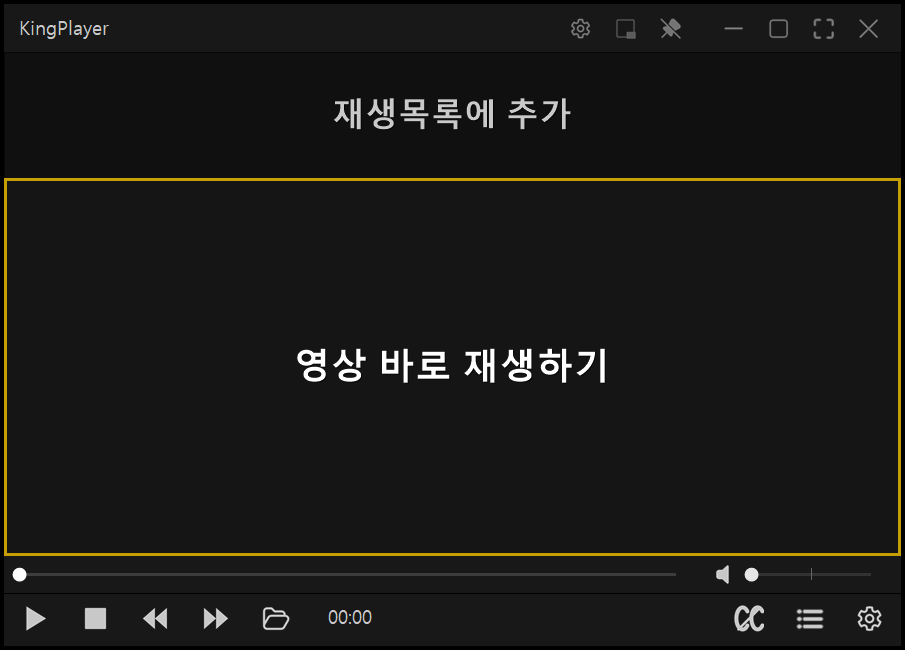
- InstallationDownload and run the installer. It installs automatically and is ready to use immediately.
- Open FilesDrag a video file onto the window, or press O or use the menu to select a file.
- Open URLPress Ctrl+U to enter a streaming URL to play directly.
- InterfaceTitle bar at top, control bar at bottom. Press F10 for control panel, right-click for menu.
Playback
- Play / PausePress Space or P to toggle play and pause.
- A-B RepeatPress [ to set start, ] to set end for loop playback. Press \ to clear.
- Speed ControlZ slower / X normal / C faster. Adjustable from 0.25x to 4.0x.
- Frame StepCtrl+←/→ to step one frame forward or backward for precise navigation.
- Seeking←/→ 3s / Shift 10s / Alt 0.5s increments.
Subtitles
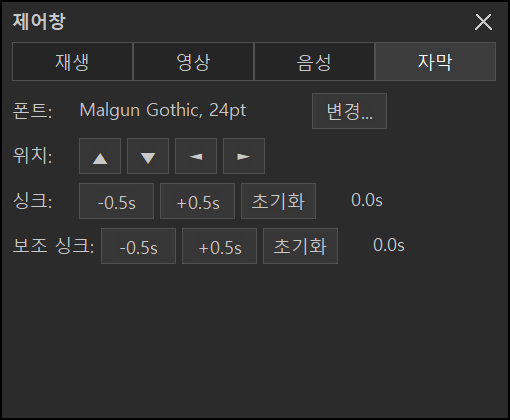
- Loading SubtitlesSubtitle files (.srt, .smi, .ass, etc.) in the same folder with the same name are loaded automatically. You can also drag to add.
- Sync Adjustment, / . to adjust timing by 0.5s. Press / to reset sync.
- Subtitle SettingsChange font, size, color, and position in the control panel (F10).
Screen
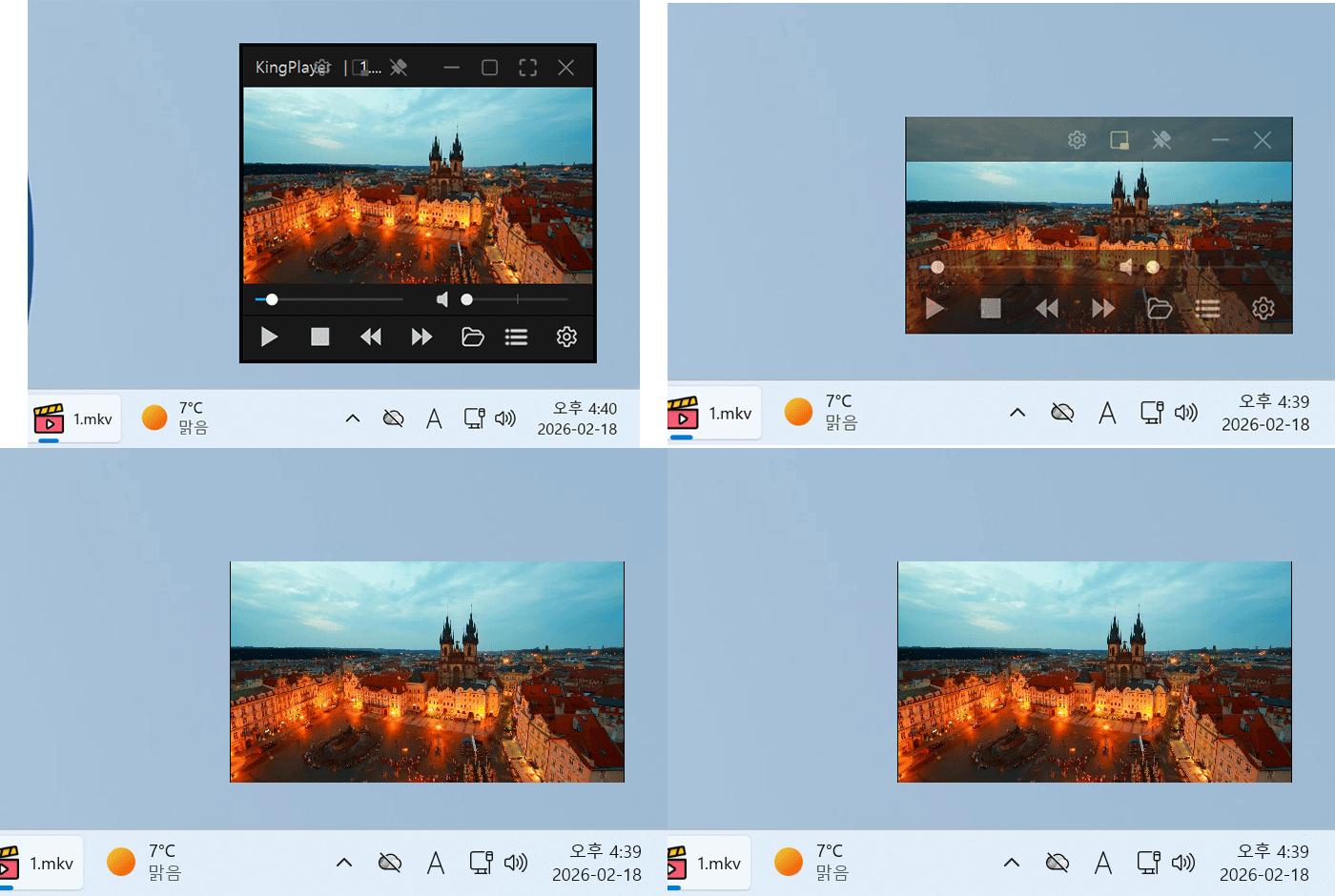
- FullscreenF or Enter to toggle fullscreen, Esc to exit. Double-click also works.
- Window SizePress 1~6 to quickly switch between 50%~200% sizes.
- Rotate / FlipW/A/S/D for 1° rotation, Q/E for 90°, H/V for horizontal/vertical flip.
- ScreenshotCtrl+P to capture the current frame. Save location can be changed in settings.
Audio
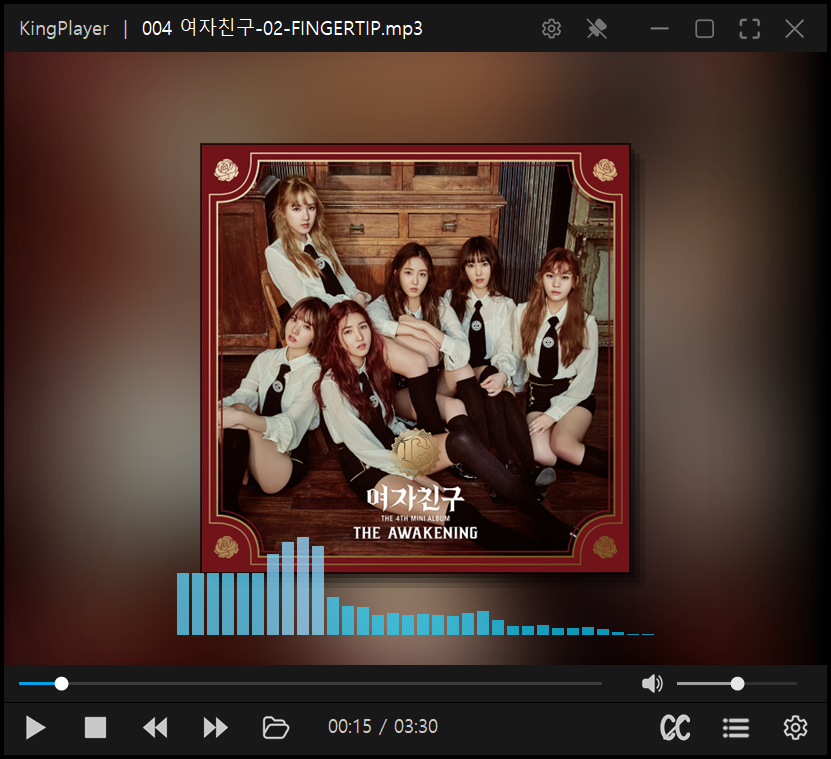
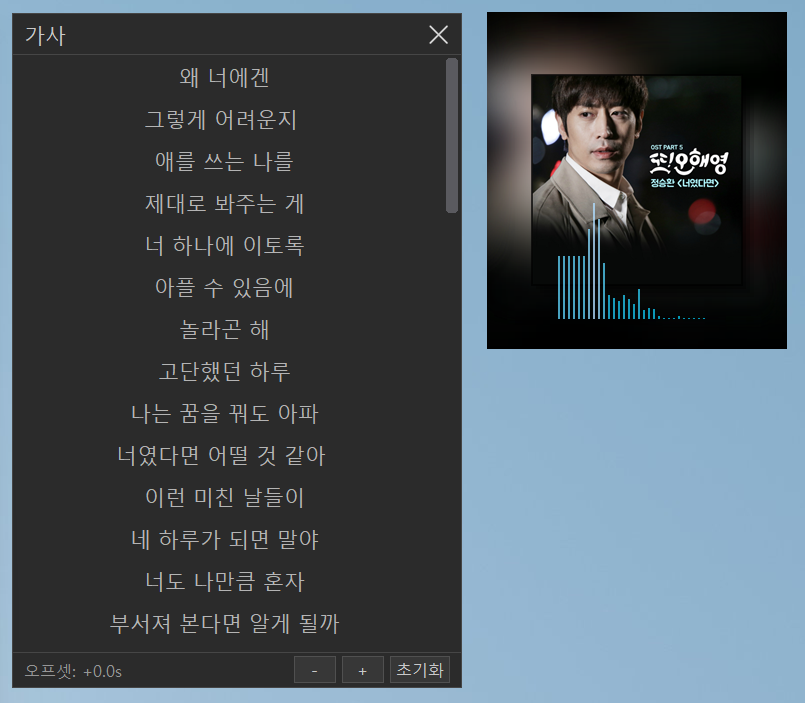
- Volume Control↑/↓ for 1% steps, mouse wheel for 5%. Press M to mute.
- Audio TrackFor videos with multiple audio tracks, select from right-click menu or control panel.
- Audio OptionsConfigure output device and channels in the Audio tab of control panel (F10).
Playlist

- Add FilesDrag multiple files or folders to add them to the playlist automatically.
- Previous / NextPgUp/PgDn to navigate to previous/next file.
- Repeat ModeChoose single file repeat, repeat all, or sequential playback.
Settings
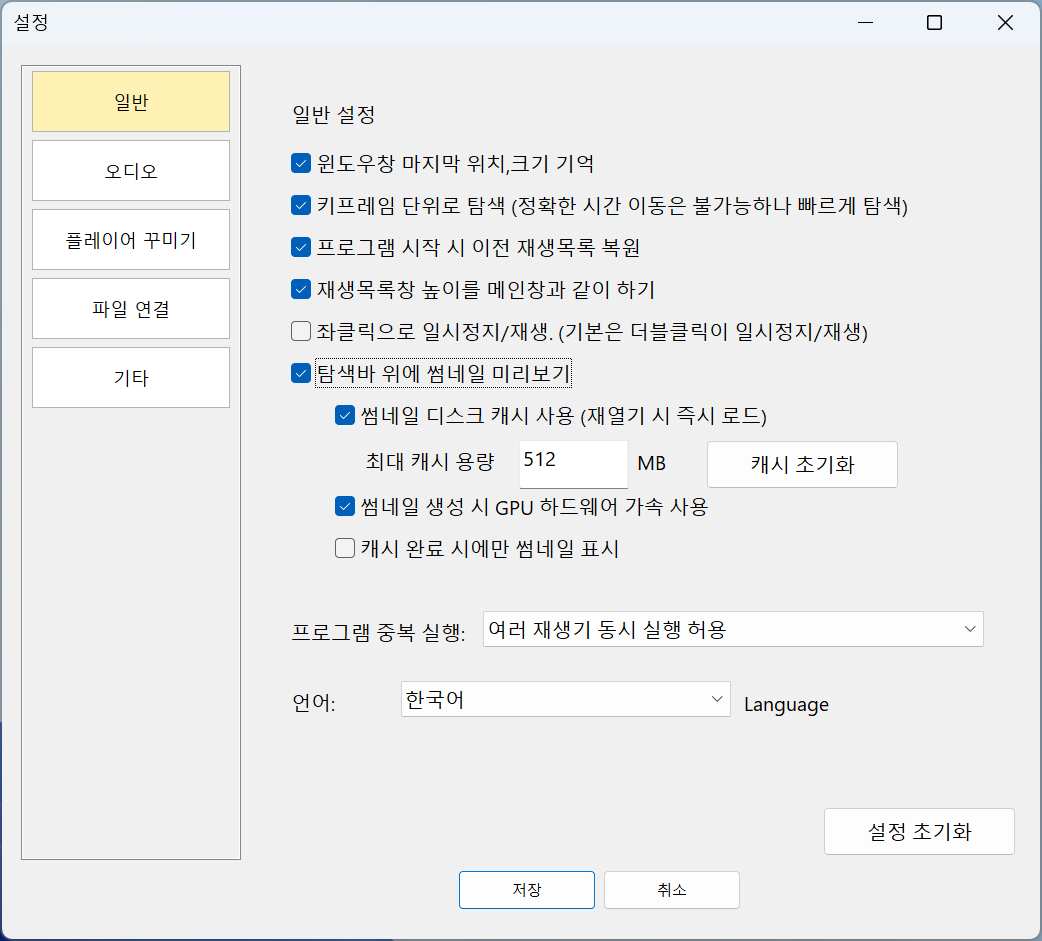
- LanguageGo to Control Panel (F10) → General tab to switch between Korean, English, and Japanese.
- File AssociationAssociate video/audio extensions with KingPlayer to play files by double-clicking.
- Thumbnail CacheCache playlist thumbnails to disk for faster loading on next launch. Toggle in settings.
- Hardware AccelerationD3D11 hardware acceleration is enabled by default. Switch to software rendering in settings if you experience issues.
All Shortcuts
| Playback Controls | |||
|---|---|---|---|
| Space / P | Play / Pause | M | Mute |
| ← / → | Seek 3 seconds | ↑ / ↓ | Volume adjustment (1%) |
| Shift+← / → | Seek 10 seconds | Mouse wheel | Volume adjustment (5%) |
| Alt+← / → | Seek 0.5 seconds | PgUp / PgDn | Previous / Next video |
| Ctrl+← / → | Frame step (0.1 sec) | Z / X / C | Speed reset / Slower / Faster |
| A-B Repeat & Subtitles | |||
| [ | A-B repeat start point | , / . | Subtitle delay -/+ |
| ] | A-B repeat end point | / | Subtitle delay reset |
| \ | A-B repeat clear | ||
| Screen & Rotation | |||
| F / Enter | Fullscreen | W / A / S / D | Rotate (0°/270°/180°/90°) |
| Esc | Exit fullscreen | Q / E(R) | Rotate (left / right) |
| 1 ~ 6 | Window size (25~200%) | H / V | Horizontal / Vertical flip |
| 7 | Maximize | 0 / T | PIP mode |
| Ctrl+T | Always on top | ||
| Miscellaneous | |||
| O | Open file | Ctrl+B | Add to favorites |
| Ctrl+U | Open URL | Ctrl+P | Screenshot |
| F5 | Open settings | F6 | Toggle playlist |
| F7 | Toggle control panel | ||
| Media key support: Play/Pause, Stop, Next, Prev (global hotkey option) | |||