KingCapture Guide
Learn installation, hotkeys, and capture modes.
Getting Started
Download & First Launch
Image Capture
7 Capture Modes
Video Recording
H.264 + GIF + HW Acceleration
Text Recognition
Google Lens-Style OCR
Settings
Save path, language, hotkeys
Shortcuts
12 default global hotkeys
Getting Started
- DownloadGet the installer from the "Download" page (~2MB).
- InstallInstallation wizard completes in seconds with default settings.
- First RunAuto-detects system language and shows the main window.
- Save PathDefault is Documents\KingCapture folder (changeable in settings).
Image Capture
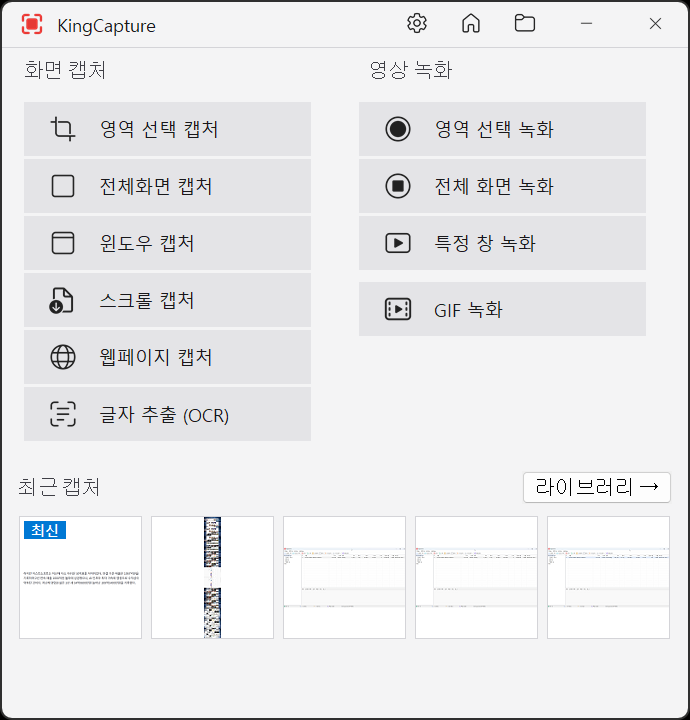
- Full ScreenCaptures the entire current monitor (Ctrl+PrtScn).
- RegionDrag to select a rectangular region (Shift+PrtScn). Magnifier + pixel grid for precision.
- WindowAuto-detects the hovered window (Alt+PrtScn).
- ControlCaptures specific UI controls (buttons, menus) within a window.
- ScrollAuto-scrolls long pages and stitches them into one image (Ctrl+Shift+PrtScn).
- WebpageBrowser-based full URL page capture.
- OCRSelect a region and an overlay displays recognized text (Ctrl+Shift+O).
Video Recording
- Region RecordingSelect a rectangular region to record (Ctrl+Shift+R).
- Full Screen RecordingRecord the entire monitor (Ctrl+Shift+F).
- Window RecordingRecord a specific window.
- GIF RecordingCreate short animated GIFs (Ctrl+Shift+G, 5-30 fps).
- HW AccelerationAuto-detects NVIDIA, AMD, Intel GPUs for encoding acceleration.
- Resolution4K@30fps with accurate A/V lip-sync.
Text Recognition

- OCR CaptureSelect a region in OCR mode to see recognized text as an overlay.
- Text SelectionDrag to select only the text range you want.
- CopyCtrl+C or right-click menu to copy to clipboard.
- Drag & DropDrag text directly into other apps (Notepad, Excel, etc.).
- Korean3-engine merge provides industry-leading Korean accuracy.
- Engine SelectSwitch between Combined (default)/RapidOCR/Windows OCR in settings.
Settings

- GeneralAuto-start, theme (System/Light/Dark), ESC to exit.
- CaptureFormat (PNG/JPG/WebP/BMP), include cursor, capture sound.
- RecordingFPS, quality, audio/mic, GIF options.
- OCREngine selection, result display (Overlay/Dialog).
- SaveSave path, filename pattern, auto clipboard copy.
- HotkeysChange any of 12 hotkeys with automatic conflict detection.
Shortcuts
| Image Capture | |
|---|---|
| Ctrl+PrtScn | Full Screen |
| Alt+PrtScn | Window |
| Shift+PrtScn | Region |
| Ctrl+Shift+PrtScn | Scroll |
| None | Webpage |
| Ctrl+Shift+O | OCR |
| Video Recording | |
| Ctrl+Shift+R | Region Recording |
| Ctrl+Shift+F | Full Screen Recording |
| None | Window Recording |
| Ctrl+Shift+G | GIF Recording |
| Etc | |
| Ctrl+Shift+K | Show Main Window |
| Ctrl+Shift+L | Open Library |